
Please find below What's New in Version 7.15. If you need any more information please email info@doctech.co.uk or call 0161 667 3390 and speak to one of our team.
Highlights / In Brief:
DocuWare Cloud and On-Premises
- New workflows only in the web-based Workflow Designer
- General improvements to the web-based Workflow Designer
- Faster workflow tasks with select list table columns
- Last Run column may appear empty until next run after update to 7.15
- Calculate in Forms now works with dropdown values
DocuWare Cloud
- Single sign-on: New callback URL required before update
- Local Data Connector: email notifications for critical errors
- Login screens in the new DocuWare design
DocuWare On-Premises
- Full-text server updated to Apache Solr 10
Full Details:
DocuWare Cloud and on-premises
New workflows only in the web-based Workflow Designer
With DocuWare 7.15, the Workflow Designer as a Desktop App no longer receives new features or improvements. The roadmap for switching to the web-based Workflow Designer describes the next steps.
In addition to that, the following is no longer possible in the Desktop Workflow Designer:
- Creating a new workflow from scratch. Create new workflows in the web-based Workflow Designer instead.
- Copying an existing workflow
- Importing a workflow as a new workflow. You can still import a workflow as a new version of an existing workflow.
Technical details
- You can still open and edit existing workflows in the Desktop Workflow Designer up to and including DocuWare 7.15. Support ends with DocuWare 7.16, planned for spring 2027.
- Creating new workflows through the API of BPWDesignService is blocked as well with 7.16. Scripts and tools that create workflows this way will stop working with 7.16 and have to be adapted.
- Workflows that are already running continue to work unchanged.
- Actions that are no longer supported remain visible in the Desktop Workflow Designer. If you select one, a message tells you that the action is no longer supported there and links to the web-based Workflow Designer:

Additional Improvements to web-based Workflow Designer:
- Arrange workflow activities automatically
- The Workflow Designer now arranges all activities of a workflow in a clean horizontal layout.
- Default colors for activity types
- Every activity type now has its own default color.
- Duplicating and reordering within workflow activities
- The following configuration entries of workflow activities can now be duplicated and reordered:
- Decision
- Data assignment
- Conditional output
- Task dialog view
- The following configuration entries of workflow activities can now be duplicated and reordered:
- Faster editing tasks fields
- Various dialog interactions have been streamlined/improved.
- Disabled notifications keep their content
- Each notification of a task activity has an enable checkbox:
- Task Notification
- Reminder
- Overdue Escalation
- Each notification of a task activity has an enable checkbox:
- Email bodies: HTML preview
- In HTML Advanced mode, the email body editor now offers a Preview toggle. The editor splits into two panels: the HTML editor on the left and the rendered result on the right, including content you have not saved yet.
- Show real names in user fields
- A dialog field of the type user can now show people by their real name instead of their login name.
- Add CC recipients for reminders and escalations
- In the settings of a task, the notifications Remind decision maker and Reassign after inactivity each have a new CC field.
- Time of day tells workflow versions apart
- In addition to the date, the version overview and the workflow details now show the publishing time of each workflow version, to the second.
Workflow: tables with select list columns work faster
Confirming a workflow task with a table with many columns is now faster. When a table column is set to Select list only, DocuWare checks whether the entered values are permitted. Until now, this happened for each cell individually. DocuWare now checks a column in a single step, for all rows together. Which values are allowed and which are not stays the same.
You save the most time when the select list gets its values from an external data source. That source is now queried only once instead of for every row.
In DocuWare Cloud the new check is active by default. In on-premises systems, an administrator activates it with the application setting ValidateAllSelectListValuesAtOnce in the Platform web configuration file.
Configurations: last run column empty until next run
DocuWare 7.15 changes how run status data is stored internally. The change affects four modules: Autoindex, Deletion Policy, Transfer, and Synchronization. For existing configurations, the Last Run column in the overview of these modules can appear empty after the update.
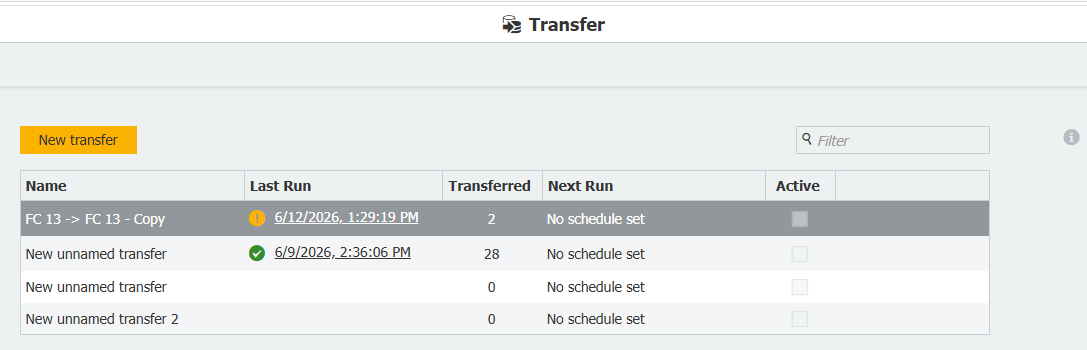
Configurations overview: The Last Run column is refilled after the job is run again after the update.
The column fills again automatically after the next scheduled or manual run of each configuration. No run data is lost, and no action is required.
The complete run history stays available in Monitoring. Once the column shows a value again, click the date to open the run history of that configuration.
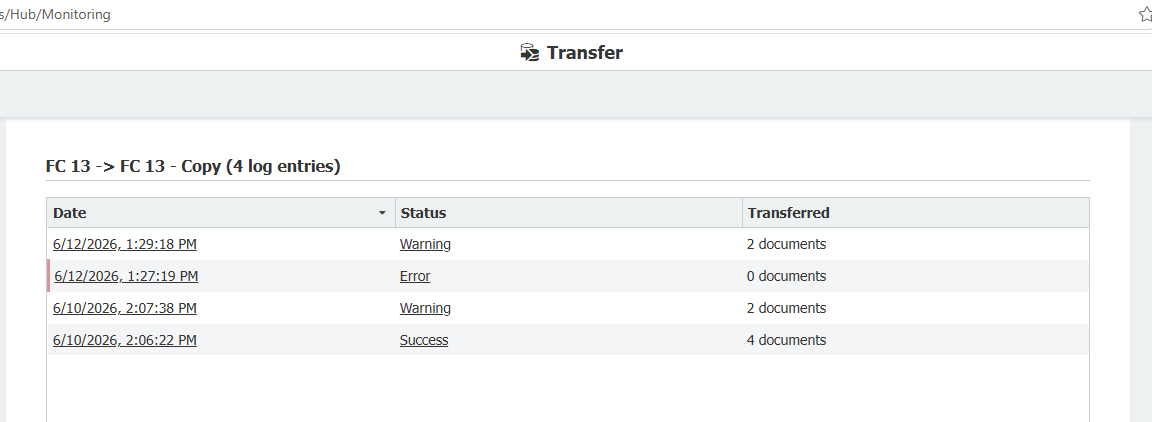
The full run history stays in Monitoring.
Calculate in Forms with dropdown values
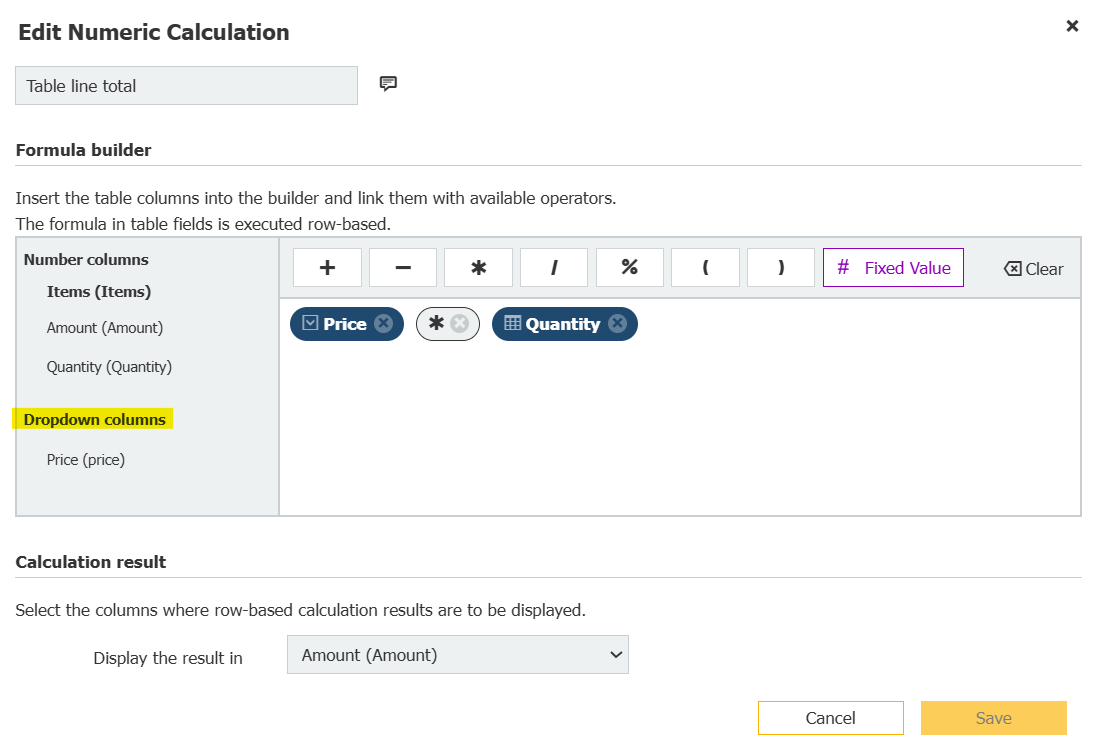
In DocuWare Forms, a dropdown item can now supply a number to a calculation. This applies to the Dropdown field and to a Dropdown column inside a Table field. The option and the rules are the same in both places.
Until now, a figure in a Dropdown was lost to any calculation. Only Number fields and Number columns could be part of a formula, so the person filling in the form had to copy the displayed value into a second field, or the calculation had to happen later in the workflow. This affected values from a select list in particular: a select list can be connected to a dropdown only, never to a Number field, so figures kept in a database could be shown on the form but never calculated with.
Now a dropdown becomes available for formulas as soon as you enable the new option Numeric value only in the Dropdown field or column settings. In the formula editor it then appears under Dropdown fields, Dropdown columns, and Dropdown column sums, and it can be combined with Number fields in the same formula. The people filling in the form see no new setting. For them, fields they used to fill in by hand are simply calculated.
DocuWare Cloud only
Single sign-on: New callback URL before the update (breaking change)
DocuWare 7.15 uses a new version of the Identity Service, which works with different URLs.
If your organization uses single sign-on: add the new Callback URL to your identity provider’s list of accepted redirect URLs.
Keep also the previous URL for version 7.14 in the list. Without the new Callback URL, single sign-on stops working as soon as your organization is updated.
You can prepare the switch at any time before the update: the current single sign-on configuration in DocuWare already shows both Callback URLs. Add the new Callback URL to your identity provider now, and nobody will notice the switch when the update arrives.
Add the new Callback URL 2 to your identity provider
Go to DocuWare Configurations > Security > Single sign-on > Configure single sign-on connection.
The connection shows two callback URLs:
Callback URL 1 for version 7.14
Callback URL 2 for version 7.15
Select the Copy button next to Callback URL 2 for version 7.15.
Switch to your identity provider.
Open the list of accepted redirect URLs at your identity provider.
Paste the new Callback URL 2 into that list. Both callback URLs have to be in the list of accepted redirect URLs.
Important: Do not remove the one for version 7.14.
- More about how to add the URL at your identity provider, see KBA-38173 in DocuWare Support.
Local Data Connector: notification for critical connector errors
Administrators who defined a data source in the Local Data Connector administration now receive an email when an infrastructural error occurs.
With this, you hear about a broken data source before a user reports an empty select list. The email is sent at the processing time of the cloud service.
The following errors trigger a notification:
- The Local Data Connector service is not reachable, because of connectivity problems or because authentication is not configured correctly.
- The database server that holds the data source configuration is not reachable.
- General service connection problems occur.
- An operation on the data source runs into a timeout.
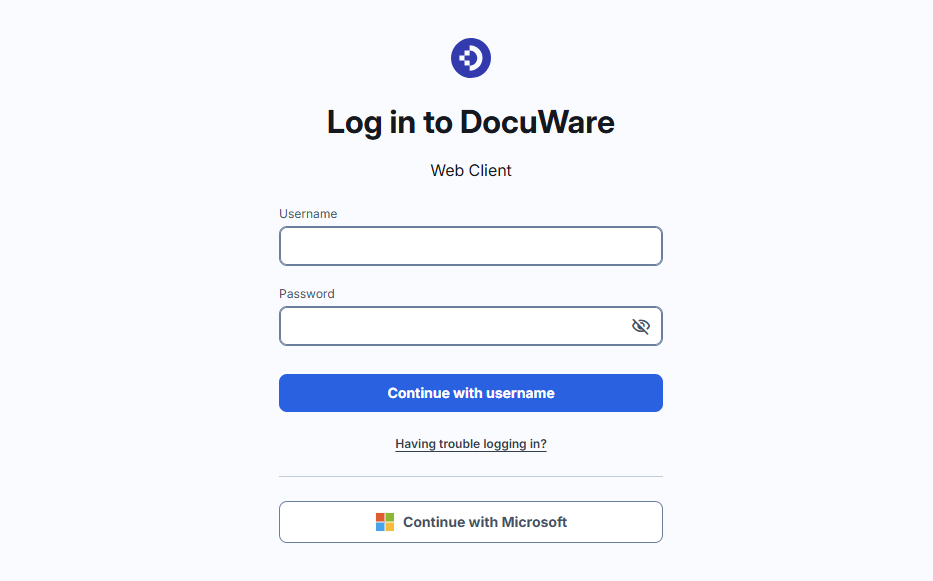
Login screens in the new DocuWare design
The login screens in DocuWare Cloud now use the same design as the new DocuWare Client. The new design applies to every DocuWare user, no matter whether they work with the Classic Client, the new Client, or the mobile app. It also covers the screens for password recovery, password changes, and two-step verification, setting it up, changing it, and deleting it.
Nothing has to be configured; the new screens appear automatically.
DocuWare on-premises only
Full-text server updated to Apache Solr 10 (breaking change)
The DocuWare full-text server now runs on Apache Solr 10.
The update requires a re-index of the full-text database. DocuWare Server Setup starts this re-index automatically.
To keep server load low, the automatic re-index covers only documents that were stored or modified within the past three years.
You can re-index older documents per file cabinet at a time that suits you. Use the function Reset fulltext data in the section DocuWare Configurations > File Cabinets > File cabinet > More options > Fulltext options.
Apache Solr 10 ships with Java 25. Java is installed together with DocuWare, so no separate Java installation on the full-text server host is required. On this basis, future security patches for Solr and Java can be applied.